


Azure Functions is a powerful serverless computing platform that enables developers to build scalable and event-driven applications without managing infrastructure. Instead of handling server configurations manually, Azure Functions leverages the cloud to manage scaling, updates, and performance automatically—saving time and reducing costs.
ASP.NET Zero, on the other hand, is a robust and modular application framework for building modern web applications. In some scenarios, it can be highly beneficial to integrate Azure Functions into an ASP.NET Zero-based application to handle background jobs, webhooks, or lightweight APIs efficiently.
In this guide, you’ll learn how to integrate Azure Functions with ASP.NET Zero, step-by-step.
Step 1: Add an Azure Functions Project to Your ASP.NET Zero Solution
Start by adding a new Azure Functions project to your existing ASP.NET Zero solution. Since ASP.NET Zero is currently based on .NET 9, make sure to select the .NET 9 framework during the project setup.

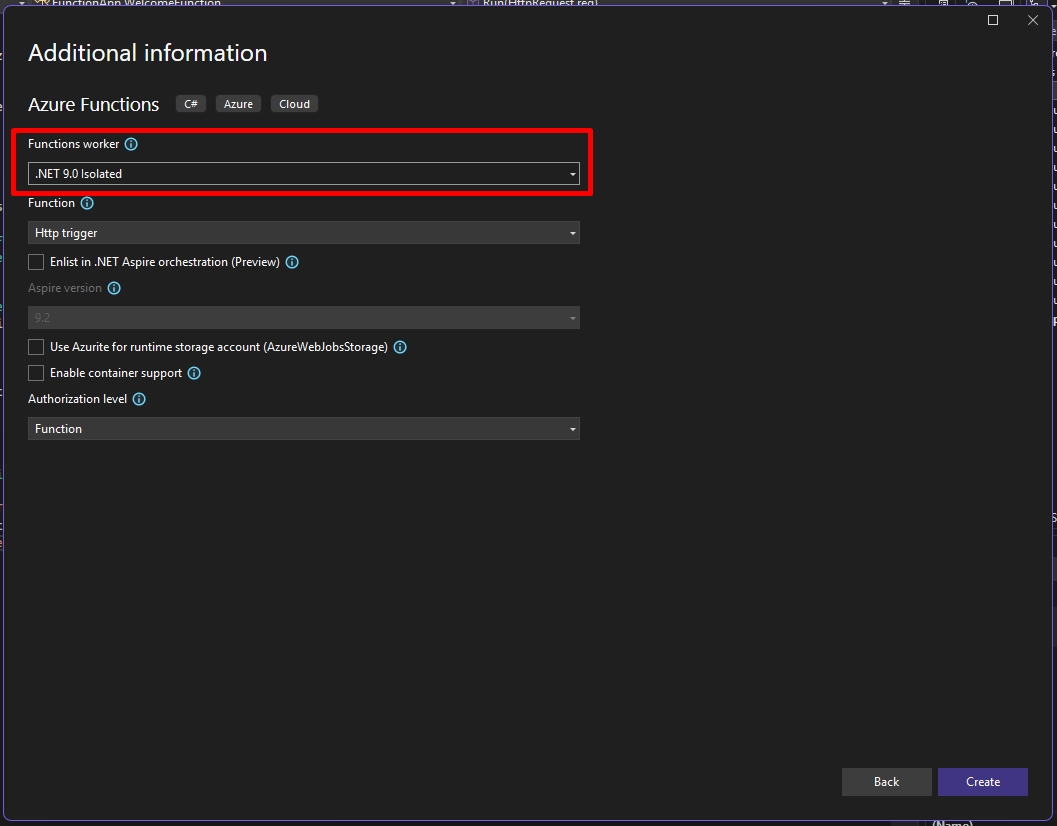
Once your function project is created, running it will expose an HTTP endpoint (e.g., http://localhost:7154/api/Function1) that returns a static message.
You can test this by navigating to the displayed URL in your browser. By default, you should see the response:
Welcome to Azure Functions!
Step 2: Integrate ASP.NET Zero into Your Azure Function Project
To integrate ASP.NET Zero functionality into your Azure Function app, you’ll need to:
- Create a new module class
- Configure module dependencies
- Set up dependency injection (DI)
✅ Create an ASP.NET Zero Module for Azure Functions
ASP.NET Zero is based on modular architecture, so the first step is creating a module class for your Azure Function project. Here's a sample implementation:
using Abp.AspNetZeroCore;
using Abp.Modules;
using Abp.Reflection.Extensions;
using AnzAzureFunctionSample.EntityFrameworkCore;
using Microsoft.Extensions.Configuration;

namespace FunctionApp
{
    [DependsOn(typeof(AnzAzureFunctionSampleEntityFrameworkCoreModule))]
    public class MyFunctionModule : AbpModule
    {
        private readonly IConfigurationRoot _appConfiguration;

        public MyFunctionModule(AnzAzureFunctionSampleEntityFrameworkCoreModule efModule)
        {
            efModule.SkipDbSeed = true;
            _appConfiguration = AppConfigurations.Get(
                typeof(MyFunctionModule).GetAssembly().GetDirectoryPathOrNull()
            );
        }

        public override void PreInitialize()
        {
            Configuration.DefaultNameOrConnectionString = _appConfiguration.GetConnectionString("Default");
            Configuration.Modules.AspNetZero().LicenseCode = _appConfiguration["AbpZeroLicenseCode"];
        }

        public override void Initialize()
        {
            IocManager.RegisterAssemblyByConvention(typeof(MyFunctionModule).GetAssembly());
        }
    }
}
🔍 Key Points in the Module
- Module Dependency: The module depends on
AnzAzureFunctionSampleEntityFrameworkCoreModule. This ensures that when the function app runs, required ASP.NET Zero modules are loaded. - Connection String: This is required to connect to your ASP.NET Zero database.
- License Code: ASP.NET Zero performs a license check at runtime, so this value must be set.
📄 Add appsettings.json
Create an appsettings.json file in your Azure Function project root:
{
  "ConnectionStrings": {
    "Default": "Server=localhost; Database={YOUR_APPS_DATABASE_NAME}; Trusted_Connection=True; TrustServerCertificate=True;"
  },
  "AbpZeroLicenseCode": "YOUR_LICENSE_CODE",
  "Functions": {
    "Worker": {
      "HostEndpoint": "{URL_Of_AZURE_FUNCTION_APP}"
    }
  }
}
Step 3: Configure Module Dependencies for Azure Functions
It’s recommended to only depend on the following modules from your ASP.NET Zero application:
- Core Module
- EntityFrameworkCore Module
Avoid referencing ApplicationModule or WebModule, as those typically include authentication, authorization, and UI-specific logic that Azure Functions doesn't support or need.
Step 4: Configure Dependency Injection for ASP.NET Zero in Azure Functions
To use ASP.NET Zero services (like repositories or domain services) within your Azure Functions, you must connect the Azure Function DI system to ASP.NET Zero's IoC container.
Update your Program.cs file as shown below:
using Abp;
using Abp.Dependency;
using Castle.Windsor.MsDependencyInjection;
using FunctionApp;
using Microsoft.Azure.Functions.Worker;

using (var bootstrapper = AbpBootstrapper.Create<MyFunctionModule>())
{
    bootstrapper.Initialize();
}

var host = new HostBuilder()
    .ConfigureFunctionsWebApplication()
    .ConfigureServices(services =>
    {
        services.AddApplicationInsightsTelemetryWorkerService();
        services.ConfigureFunctionsApplicationInsights();

        WindsorRegistrationHelper.CreateServiceProvider(
            IocManager.Instance.IocContainer,
            services
        );
    })
    .UseServiceProviderFactory(new MyServiceProviderFactory<MyFunctionModule>())
    .Build();

host.Run();
using System;
using Abp.Dependency;
using Castle.Windsor.MsDependencyInjection;
using Microsoft.Extensions.DependencyInjection;

public class MyServiceProviderFactory<MyFunctionModule> : IServiceProviderFactory<MyFunctionModule>
{
    public MyFunctionModule CreateBuilder(IServiceCollection services)
    {
        return IocManager.Instance.Resolve<MyFunctionModule>();
    }

    public IServiceProvider CreateServiceProvider(MyFunctionModule containerBuilder)
    {
        return WindsorRegistrationHelper.CreateServiceProvider(IocManager.Instance.IocContainer, new ServiceCollection());
    }
}
🧠 What’s Happening Here?
AbpBootstrapperinitializes the ASP.NET Zero module and dependencies.WindsorRegistrationHelpercombines Azure Functions’ services with ASP.NET Zero’s DI system.UseServiceProviderFactoryensures ASP.NET Zero's IoC container is used as the default service provider for your function app.
Step 5: Example Azure Function with ASP.NET Zero Repository
Now you can inject services like IRepository<T> from ASP.NET Zero into your Azure Functions.
using Abp.Dependency;
using Abp.Domain.Repositories;
using AnzAzureFunctionSample.Authorization.Roles;
using Microsoft.AspNetCore.Http;
using Microsoft.AspNetCore.Mvc;
using Microsoft.Azure.Functions.Worker;

namespace FunctionApp;

public class WelcomeFunction : ITransientDependency
{
    private readonly ILogger<WelcomeFunction> _logger;
    private readonly IRepository<Role> _roleRepository;

    public WelcomeFunction(ILogger<WelcomeFunction> logger, IRepository<Role> roleRepository)
    {
        _logger = logger;
        _roleRepository = roleRepository;
    }

    [Function("WelcomeFunction")]
    public IActionResult Run([HttpTrigger(AuthorizationLevel.Function, "get", "post")] HttpRequest req)
    {
        _logger.LogInformation("C# HTTP trigger function processed a request.");
        var sampleRole = _roleRepository.FirstOrDefault(e => e.Id == 1);
        return new OkObjectResult("Welcome to Azure Functions! -> " + sampleRole?.Name);
    }
}
🔍 How It Works
This function retrieves a role with Id = 1 from the ASP.NET Zero database and returns a message such as:
Welcome to Azure Functions! -> admin
Test this by sending a GET request to:
http://localhost:7154/api/WelcomeFunction
Troubleshooting Tips
- This setup was tested using Visual Studio. JetBrains Rider may not support Azure Functions as smoothly, especially during local execution.
- If you encounter startup or DI issues, ensure:
- Your
MyFunctionModuleis properly registered. appsettings.jsoncontains correct values.- You're referencing the correct modules (
CoreandEntityFrameworkCoreonly).
- Your
Conclusion
Integrating ASP.NET Zero with Azure Functions allows you to harness the power of serverless architecture while still leveraging your existing domain and data layers. This setup is ideal for building lightweight APIs, background tasks, or webhooks that operate alongside your full-featured ASP.NET Zero web application.
By following the steps in this guide, you can:
- Reuse your business logic in a serverless context
- Improve performance and scalability
- Simplify cloud-native development using familiar tools


